
How to Sync Products From Merchize To TikTok Shop
TikTok Shop Product Sync feature allows you to automatically push your Merchize products directly to your TikTok Shop seller account. Instead of manually creating listings one by one, you can now manage your designs in Merchize and have them appear on TikTok, saving you time and ensuring product information remain consistent across platforms.
Before You Begin
Before you start syncing, make sure you have the following ready:
- An active TikTok Shop account: You must have already completed the onboarding process on TikTok Seller Center.
- Store Connection: Ensure your TikTok Shop is already connected to your Merchize dashboard under the Stores section.
- Product Designs: Have your designs uploaded and products created within the Merchize system.
Syncing requirements:
To ensure a successful sync, please verify that your product meets these TikTok-specific requirements:
- The product must be created directly in Merchize. Products imported from external platforms (like Shopify or Printful) cannot be synced to TikTok.
- Variant Limit: Your product cannot have more than 300 variants.
- Pricing: All variants must be priced between $0.01 and $7,600.00.
- Description: You must include a description (max 10,000 characters and 30 images).
- Character Limits: Product attribute names (like Color or Size names) must be under 30 characters.
Step-by-Step Instructions
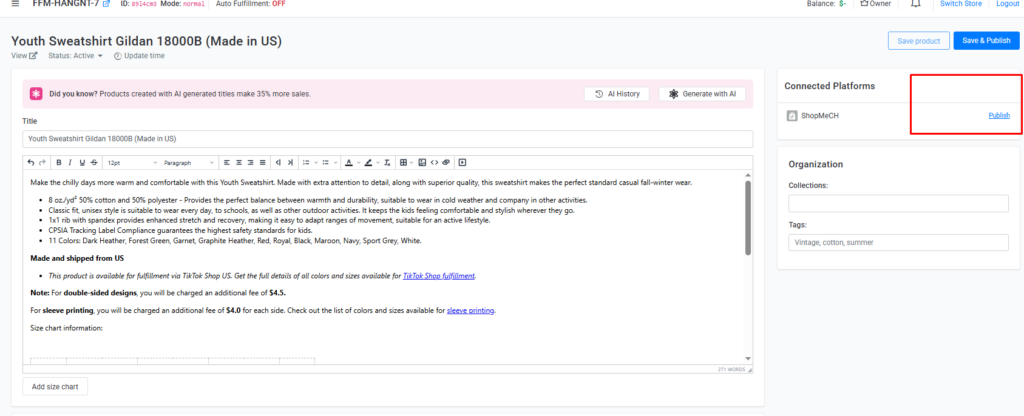
1. Go to product page you want to sync.
2. On the Connected Platform on the right, click Publish
3. In the Publish to TikTok Shop dialog, select the following:
- Store: Choose the specific TikTok Shop you want to list on.
- Category: Select the most relevant TikTok product category.
- Warehouse: Choose your TikTok Shop warehouse.

4. Click Publish and wait for the product to be synced to TikTok
5. Monitor your progress
After clicking Publish, look for the TikTok icon next to your product to see the real-time status:
- ⚫ Black: Sync successful!
- 🔴 Red: Sync failed (check the error log).
- 🟡 Yellow: Update required.
- ⚪ Gray: Still processing.
Or go to Products > More Actions > View Synced Products to see the syncing status for all products.

6. Go to TikTok and review Default Shipping & Stock information of the synced listings
Unless changed, the system will apply these defaults to your TikTok listing:
- Total Stock: 9,999 units per warehouse.
- Weight: 2.00 lbs.
- Dimensions: 20 x 15 x 20 inches.
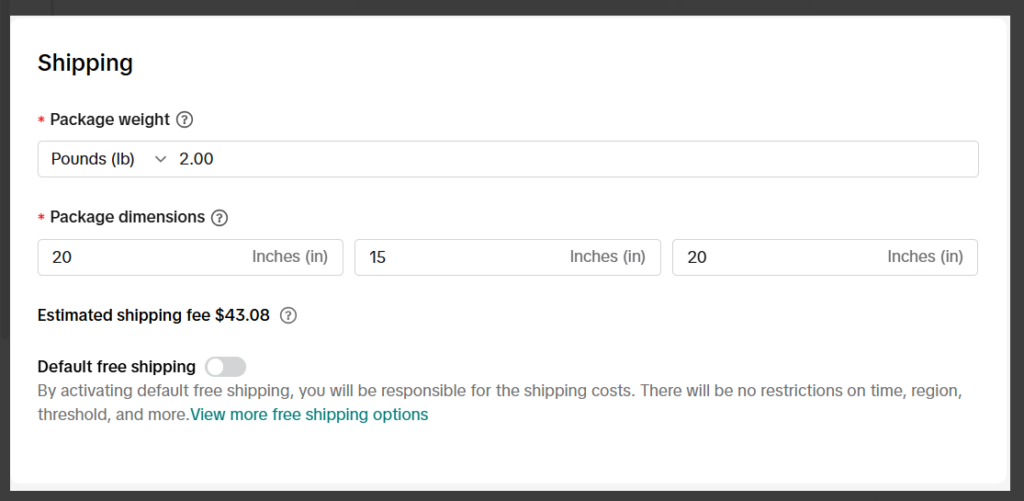
Note: You should adjust the package weight and dimensions in the product details to ensure your shipping rates are calculated accurately on TikTok.
Other information, like Product Title, Product Gallery, Product Description, and Variants, will be synchronized from your Merchize listing.
5. Managing Your Orders
Once a customer buys your product on TikTok, the order will automatically sync to Merchize.
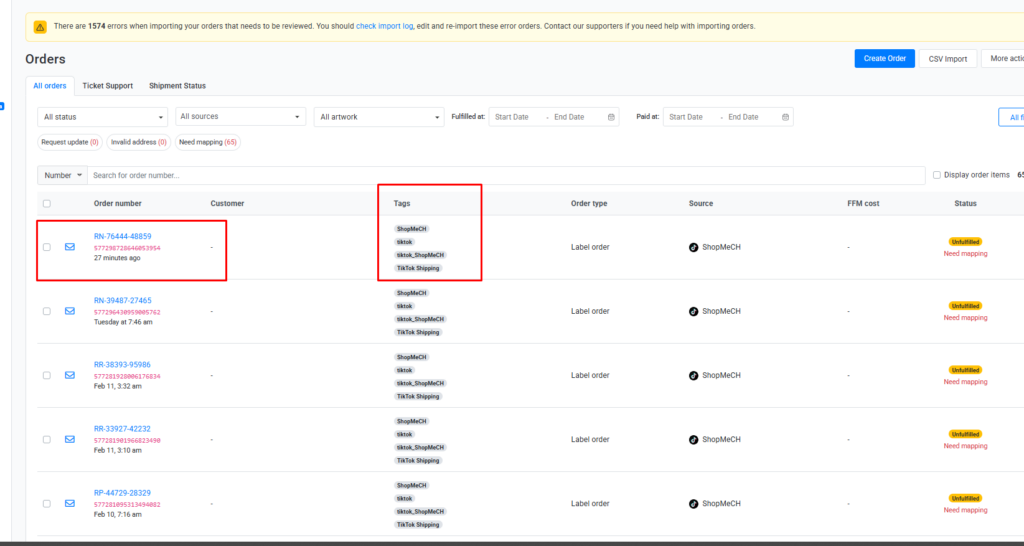
- To check if an order has synced yet, go to Orders > More Actions > Order Import Log.

- Go to Orders to see your successfully synced TikTok orders (marked with a “tiktok" tag).
Troubleshooting
If your sync fails (Red icon), go to Products > More Actions > View Synced Products to see the specific error.
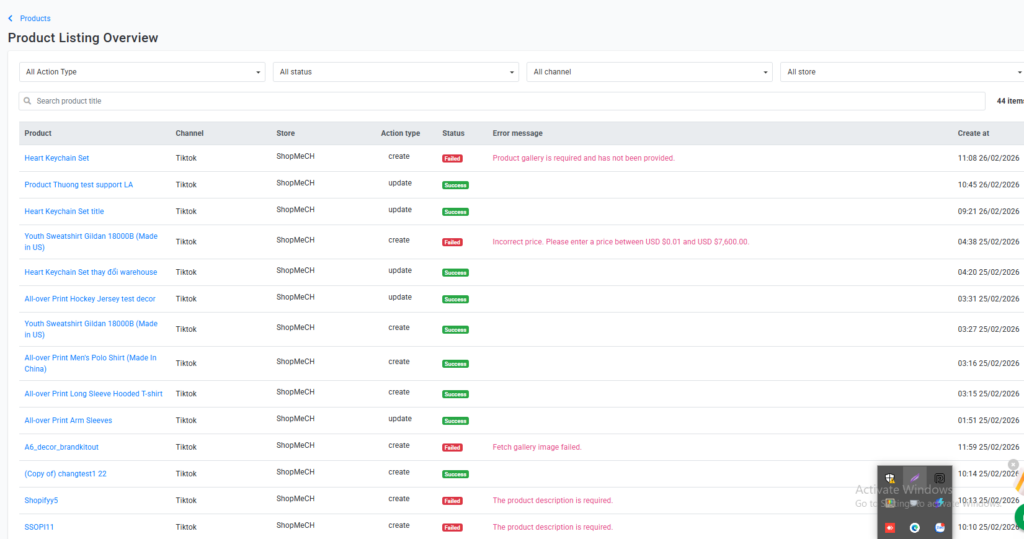
Common fixes include:
- “Sync product to TikTok does not support external/personalized product."
Solution: Only products originally created within Merchize can be synced. If your product is synced from other platforms, recreate the product at Merchize and try again.
- “The product description is required", “The product description cannot exceed 10000 characters", “Description images limit at 30"
Solution: Review your product listing and make sure the description and number of listing image are comply with the requirements.
- “Product gallery is required and has not been provided”
Solution: Add at least one image to the main product gallery.
- “Incorrect price. Please enter a price between USD $0.01 and USD $7,600.00."
Solution: Re-enter your price. Ensure your price is at least $0.01 and does not exceed $7,600.00.
- The sale attribute name should contain fewer than 30 characters. Check the attribute name [Attribute name]
Solution: Shorten your variant names to less than 30 characters.