
How to Set Up Product Mapping Rules for Automapping
What Are Product Mapping Rules?
Product Mapping Rules let you set up store-specific rules so the system can automatically map products as soon as an order syncs into Merchize.
Instead of mapping every order manually, you create a rule set once. From then on, any new order that matches the rule’s conditions will be mapped automatically and move forward in processing.
You should use this feature if:
- You name your products following a consistent, identifiable structure that corresponds to product lines in the Merchize catalog.
- You want the system to automatically map new incoming orders.
- You want to reduce the amount of manual mapping you do per order.
How Product Mapping Rules Work
A Rule Set is a group of rules that automatically map a product or product group from your store to products in Merchize’s catalog.
Each Rule Set consists of two parts:
- Product Mapping Rules: Define which product from the Merchize catalog each of your store products should be mapped to.
- Shared Attribute Mapping Rules: Define how attributes (e.g., size, color) on your store products correspond to attributes on the matching product in the Merchize catalog. You can find your store’s attribute names on the product detail screen, under Product Variants & Pricing.
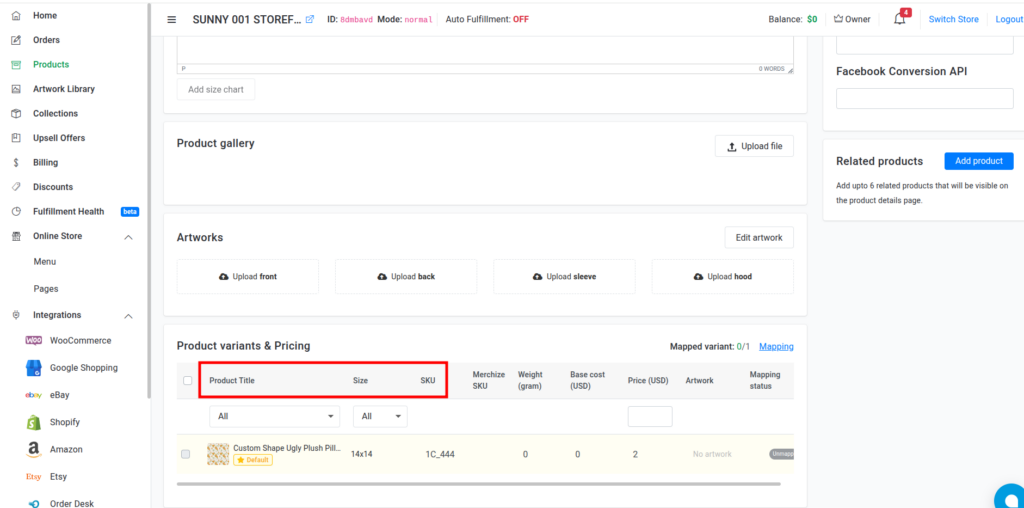
A single Rule Set can contain multiple Product Mapping Rules, and all of them share the same Attribute Mapping.
Example:
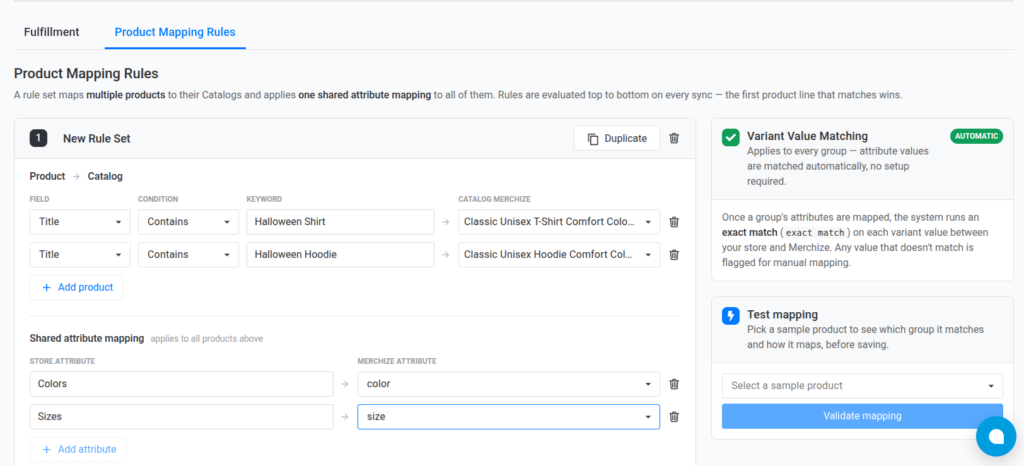
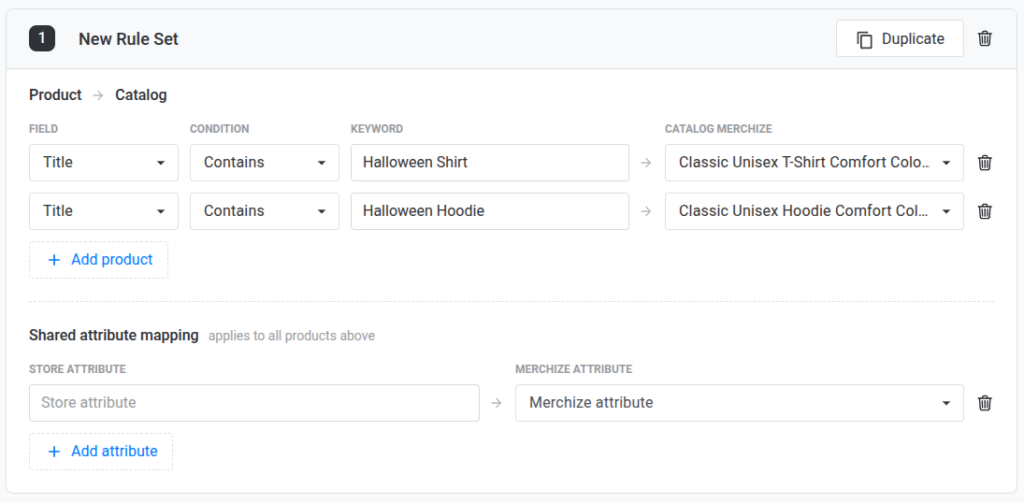
A Rule Set like the one above contains two Product Mapping Rules:
- Products with a title containing the keyword “Halloween Shirt" → mapped to Classic Unisex T-Shirt Comfort Colors 1717 (Made in US) in the Merchize catalog.
- Products with a title containing the keyword “Halloween Hoodie" → mapped to Classic Unisex Hoodie Comfort Colors 1567 (Made in US) in the Merchize catalog.
Both rules use the same Shared Attribute Mapping:
- Colors → color: the “Colors" attribute on your store is mapped to the “color" attribute of the corresponding Merchize product.
- Sizes → size: the “Sizes" attribute on your store is mapped to the “size" attribute of the corresponding Merchize product.
Note: Merchize does not currently support setting up variant-level mapping directly. Once attributes are mapped, the system automatically matches each variant’s values (e.g., size, color) between your store product and the Merchize product to find the correct variant.
How to Create Product Mapping Rules
Step 1: Create a Rule Set
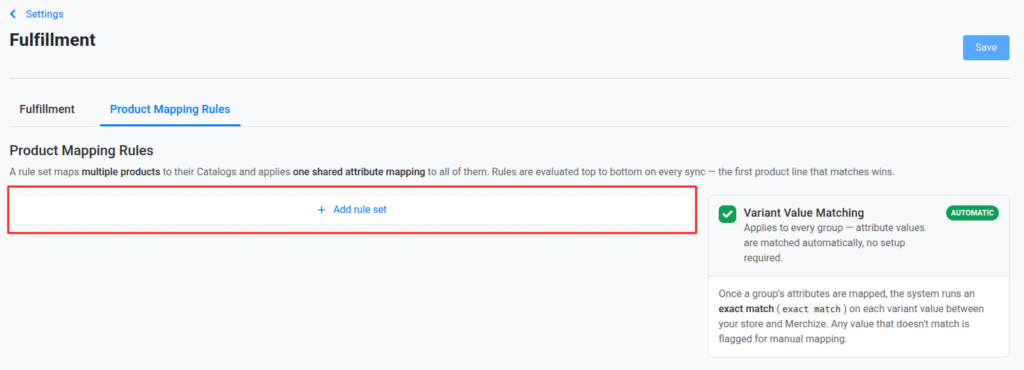
Go to Settings → Fulfillment → Product Mapping Rules, then click Add Rule Set to create a new one.
Step 2: Name the Rule Set
Enter a name under New Rule Set to make it easy to identify later — for example: “Etsy Apparel," “Halloween Products," or “Shopify Apparel Mapping."
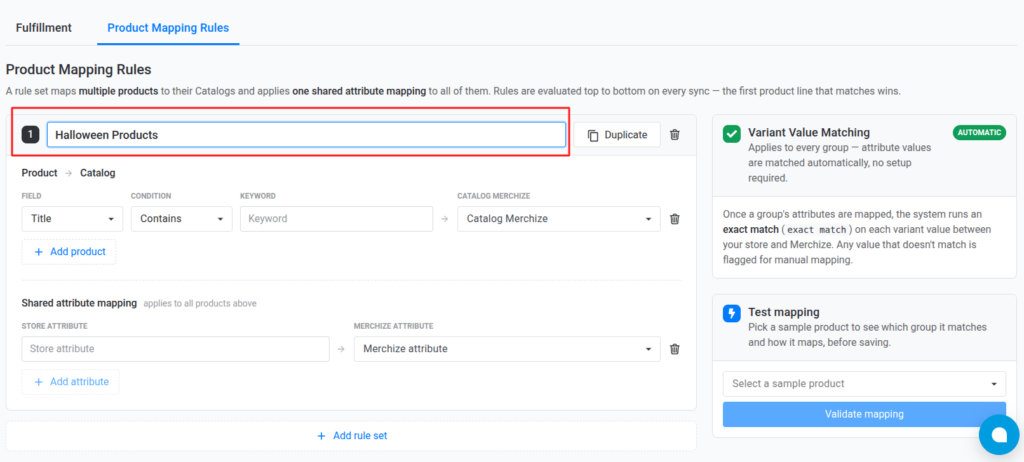
You can also:
- Duplicate an existing Rule Set to copy it.
- Delete a Rule Set you no longer need.
Step 3: Set Up a Product Mapping Rule
Set up your Product Mapping Rule under Product → Catalog. Each Product Mapping Rule includes the following fields:
| Field | Description |
| Field | Choose which field to match against: Title or Collection.
• Title: Your store’s product name. Products that meet the condition will be mapped to the corresponding Merchize catalog product. • Collection: A grouped category of products. All products within a matching Collection will be mapped to a single Merchize catalog product. |
| Condition | Choose the matching condition: Contains or Exact.
• Contains: Maps the product if its Title/Collection contains the given keyword. • Exact: Maps the product only if its Title/Collection is a 100% exact match with the given keyword. |
| Keyword | The keyword used to identify products in your store. |
| Catalog Merchize | The product in Merchize’s catalog this rule maps to. |
Notes:
- You can add multiple Product Mapping Rules to the same Rule Set. Click Add Product to add a new rule.
- A Rule Set cannot be saved if a Product Mapping Rule is missing a Keyword or a selected Merchize Catalog product.
- Arrange your Rule Sets in order of priority — the system checks them from top to bottom.
Step 4: Set Up Shared Attribute Mapping Rules
Once you’ve selected a Merchize product, the system will display its corresponding attributes for you to map. Click Add Attribute to add a new attribute mapping.
| Field | Description |
| Store Attribute | Enter the attribute name used on your store. |
| Merchize Attribute | Select the matching attribute name from the Merchize catalog’s product. |
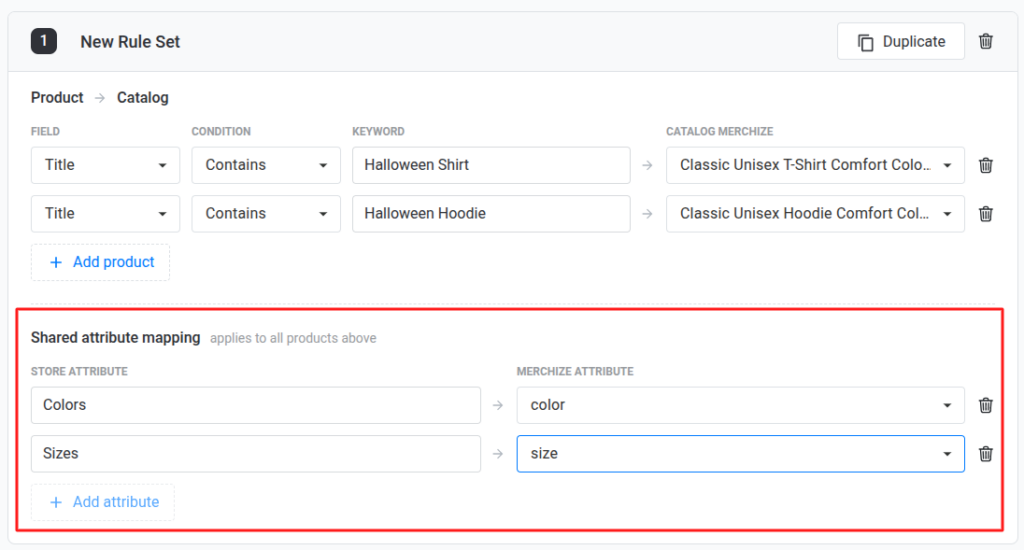
Example: If your Shopify product has an attribute called “Colors," but the corresponding Merchize product uses “Color," you simply map: Colors → color.
Notes:
- The list of Merchize Attributes only appears after you’ve selected a catalog product.
- If a Rule Set contains multiple Product Mapping Rules pointing to different Merchize products, the system automatically merges the attributes of those products into a single combined list for you to map. Attributes with the same name are merged into one.
- Once all attributes have been mapped, the Add Attribute button will be automatically disabled.
Step 5: Test the Rule Before Saving
Before saving your Rule Set, use the Test Mapping feature to check the results.
- In the Test Mapping section, select a store product that hasn’t been mapped yet.
- Click Validate Mapping.
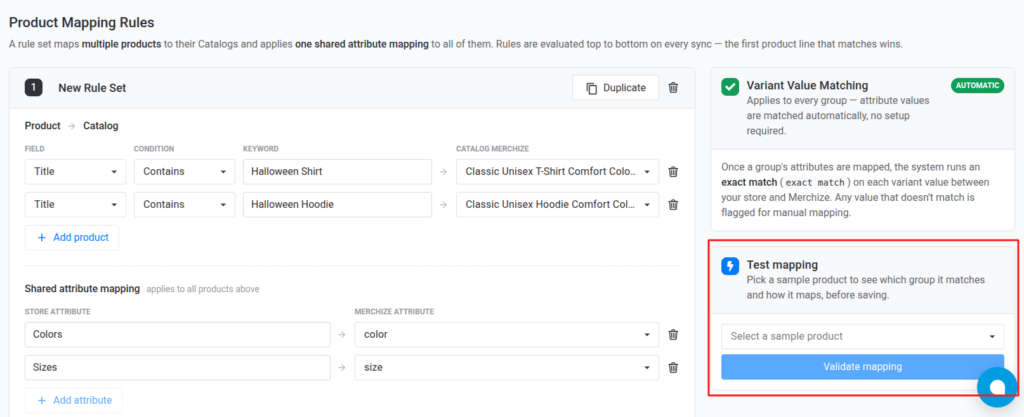
The system will check all of the product’s variants and display the results:
- Mapped (green): The variant was mapped successfully.
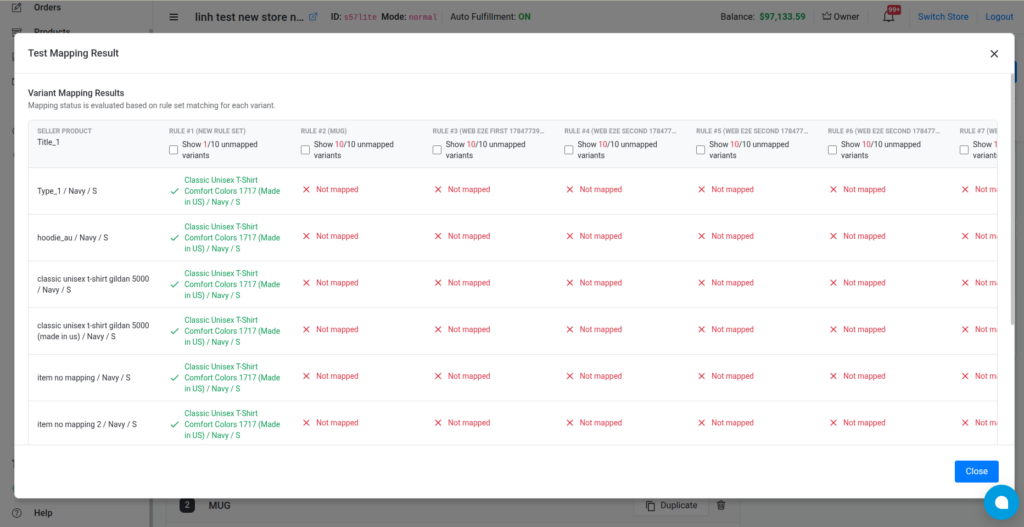
- Not mapped (red): The variant could not be mapped. In this case, review and adjust your Product Mapping and Shared Attribute Mapping conditions.
Test Mapping uses the exact same logic the system applies when processing real orders, so you can verify everything works before applying the rule.
Notes:
- Test Mapping is a preview only — it does not save any data.
- If a product matches multiple rules at the same time, Test Mapping will return the same error it would show during live automapping.
Step 6: Save the Rule Set
Once your Product Mapping and Shared Attribute Mapping are complete, click Save.
Changes only take effect after you click Save.
Note: Run Test Mapping every time you edit a rule, before saving. Also keep in mind: if you edit a rule after orders have already been mapped using the previous version, those existing orders will not be re-mapped. Updated rules only apply to new orders going forward.
How the System Automaps Orders
When a new order syncs into Merchize, the system processes it in the following order:
Step 1 — Check for a Merchize SKU If an item in the order already has a Merchize SKU, the system uses that SKU directly and does not run any Product Mapping Rules.
Step 2 — Apply Product Mapping Rules If an item does not yet have a Merchize SKU, the system checks each Rule Set in priority order, from top to bottom. For each Rule Set, it evaluates three conditions in sequence:
- Condition 1 – Product Matching: The product’s Title or Collection must match the Keyword set in the rule.
- Condition 2 – Attribute Mapping: The product’s store attributes must successfully map to the corresponding Merchize catalog product’s attributes.
- Condition 3 – Variant Matching: The variant values (e.g., size, color) on the store product must exactly match those on the Merchize product (not case-sensitive).
If a product passes all three conditions, the system automatically:
- Maps the store product to the correct Merchize catalog product.
- Maps the corresponding variant.
- Saves the mapping history.
- Allows the order to continue processing.
If a product fails any of these conditions, it will not be automapped. You’ll need to map it manually using AI Mapping Suggestion or the manual mapping process. Read the detailed instructions here.