
Walmart Integration: How To Sync and Fulfill Walmart Orders with Merchize
The Walmart integration allows you to connect your Walmart Seller Center account to Merchize and automatically import Walmart orders for fulfillment.
With this integration, you can:
- Automatically sync Walmart orders to Merchize every 2 minutes. No manual CSV exports or imports required.
- Keep selling with your existing Walmart listings. No need to recreate your products on Merchize. Simply connect your Walmart store and use Merchize to fulfill your existing listings.
- Set up product mapping once. Map your Walmart products with Merchize products once. When customers order the same products again, Merchize remembers the mapping, so you don’t have to repeat the process.
- Easily monitor failed orders. See which orders fail to import, see why they failed, and retry directly from Merchize with one click.
Important: This integration follows an order-first workflow. You manage your product listings directly on Walmart. Merchize does not publish products to Walmart.
1. How To Connect Your Walmart Account
Step 1: Open Walmart Integration
- Log in to your Merchize Seller Dashboard.
- Navigate to Integrations → Walmart from the left-side menu.
Step 2: Connect Your Account
- Click Connect.
- Follow the on-screen instructions to authorize your Walmart Seller Center account.
- Complete the authorization process and return to Merchize.
Step 3: Verify Your Connection
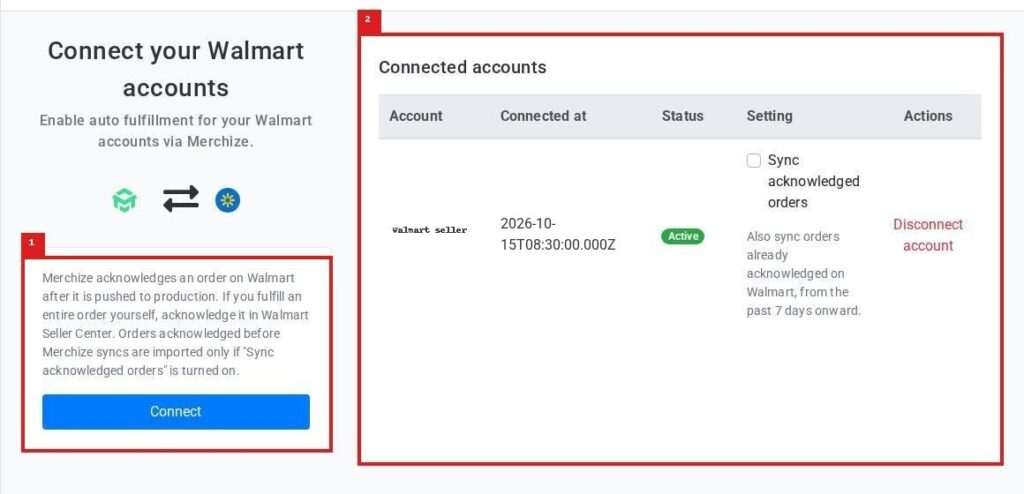
After connecting, your Walmart account will appear under Connected accounts.
If Walmart login fails three consecutive times, the account status changes to Disconnected. Merchize displays a red status indicator.
2. How To Configure Order Synchronization
2.1. Which Walmart Orders Are Imported?
Merchize automatically checks Walmart for new orders every 2 minutes.
| Walmart order status or situation | Imported to Merchize? |
| New order (Created, not yet acknowledged) | Yes. |
| Order created within 7 days before the initial connection | Yes, if it has not been acknowledged. |
| Order already acknowledged by another ERP, 3PL, or application | Only if Sync acknowledged orders is enabled. |
| Order with a PO number that already exists in your Merchize store | No. Each Walmart PO number can only create one order in Merchize. |
2.2. Enable Sync Acknowledged Orders
By default, Sync acknowledged orders is turned off.
Enable this option if you use another system to acknowledge Walmart orders before Merchize imports them.
To enable it:
- Go to Integrations → Walmart.
- Find your connected Walmart account.
- Under Settings, enable Sync acknowledged orders.
When enabled, Merchize imports Walmart orders that:
- Have already been acknowledged.
- Have not yet been shipped.
- Have not been canceled.
- Fall within the previous 7-day period, calculated from 00:00 UTC.
If you turn this option off and enable it again later, Merchize recalculates the 7-day lookback period based on the new activation date.
Important: Merchize does not acknowledge these orders again. Their order details will display the badge Acknowledged by another party.
3. How To Process Walmart Orders in Merchize
Once synchronized, Walmart orders appear in Orders in your Merchize dashboard.
Follow these steps to prepare and process an order.
Step 1: Open and Review the Order
- Navigate to Orders.
- Find the Walmart order you want to process.
- Open the order details.
Merchize imports the following information from Walmart:
- Walmart PO number.
- Order date.
- Estimated Ship Date.
- Customer name and shipping information.
- Phone number.
- Product SKUs and quantities.
Step 2: Map Walmart Products to Merchize Products
You must map products in your orders to corresponding products in the Merchize catalog before fulfillment.
Check our detailed guide on how to map your products. You can also configure Product Mapping Rules in your store settings. Existing rules will apply to Walmart orders.
If an order contains an item that is already mapped to a product in Merchize’s catalog, Merchize automatically uses its existing variant. You do not need to map it again.
When Merchize imports an order containing a seller-created SKU, it may automatically create a corresponding product in your Merchize store. For more details on how the products are generated from a Walmart order, read section 4.
Step 3: Add Artwork
Upload your custom artwork either directly in the order details or in the corresponding product details.
Step 4: Push the Order for Fulfillment
Once product mapping and artwork are ready, push orders to production using your usual Merchize fulfillment workflow (manual push, auto fulfill, Pay Now).
Important:
- Merchize acknowledges the Walmart order only after it is successfully pushed to production. Before pushing, the order remains unacknowledged on Walmart.
- You can’t add new products to Walmart orders. Walmart orders cannot be combined with other orders.
Step 5: Send Tracking Information to Walmart
Once tracking information is available, Merchize sends it to Walmart for each order line and quantity.
If you want to delay tracking synchronization, configure the tracking settings under Settings → Fulfillment. See Section 6.
4. How Products Are Created from Walmart Orders
When Merchize imports an order containing a seller-created SKU, it may automatically create a corresponding product in your Merchize store.
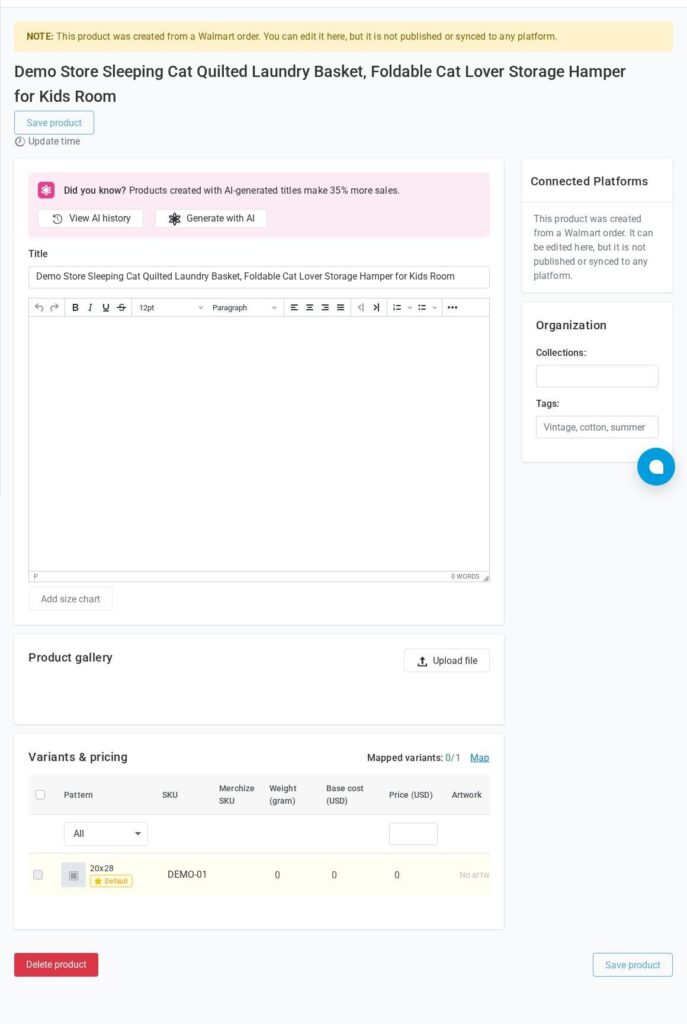
For products generated from a Walmart order, you can edit them in Merchize, but you can’t publish or sync them to any platform. Continue managing your actual product listings directly in Walmart Seller Center.
The product appears in your Products list like a regular product, with Active status and a $0 price.
How Merchize Reuses Products and Variants
Merchize uses Walmart product identifiers and attributes to determine whether to create a new product or reuse an existing one.
| Situation | How Merchize handles it |
| A seller SKU appears for the first time | Creates a new product using the Walmart product title, image, and attributes. |
| Same product ID, title, attribute name, and attribute value | Reuses the existing product and variant. |
| Same product ID, title, and attribute name, but a different attribute value | Adds a new variant to the existing product. |
| Same variant but a different Walmart SKU | Reuses the existing variant and associates the additional SKU with it. |
| Different product ID, title, or attribute name | Creates a new product. |
| Same SKU appears in a different Walmart account | Creates a separate product for that account. |
| Seller changes the product title in Merchize | Future orders with the same SKU continue using that product. |
| Seller edits the listing on Walmart | The existing Merchize product is not automatically updated. |
For product grouping, Merchize uses Walmart’s variation group ID when available. If there is no variation group ID, it uses the SKU as the product identifier.
How to Map Product Variants
To map a product created from a Walmart order:
- Navigate to Products.
- Open the corresponding product.
- Find the Variants & pricing section.
- Click Map.
- Select the appropriate Merchize SKU for each variant.
- Click Save Product.
Important: If you map a product after its Walmart order has already been imported, the existing order line will not automatically recognize the newly mapped Merchize SKU. Reopen the order and map the product again.
5. How to Troubleshoot Failed Walmart Orders
If a Walmart order cannot be imported, you can review the error and retry the import.
- Navigate to Orders → More Actions -> View Import Logs.
- Find an exact Walmart order by entering its PO number in the search box, using the External number search type.
To show all the logs for Walmart orders, select Walmart from the All sources dropdown. - If the order status is Failed, check the Error message column to identify the issue.
- Click Retry in the Actions column. Wait for the import process to run.
Important retry rules:
- Each Walmart PO number has only one log entry. Repeated synchronization does not create additional Failed entries for the same order.
- Retry processes the existing log entry instead of creating a new one.
- Wait at least 2 minutes before clicking Retry again.
- If the order has not yet been created in Merchize, it has not been acknowledged on Walmart.
- Once the retry succeeds, the order proceeds through the normal order processing workflow.
You will also receive a notification when an order import fails. The same order and the same error are reported only once within a 24-hour period.
6. How To Customize Tracking Synchronization
You can configure when tracking information is sent to Walmart.
Step 1: Go to Settings → Fulfillment.
Step 2: Under Customize tracking sync time, choose when tracking information should be sent to your connected sales channels.
Option 1: Default
Merchize synchronizes tracking information to the integration as soon as the order’s tracking information is updated.
Option 2: Custom time
- Select Custom time.
- Enter the number of days.
- Under Choose integration apply this setting, select Walmart.
- Click Save.
The custom setting applies to every integration you select, using the same configured number of days.
Important: Walmart requires orders to ship before their Estimated Ship Date. Avoid setting a tracking delay that could cause your orders to miss this deadline.
7. Important Situations to Know
| Situation | What happens |
| An order contains both Merchize SKUs and seller-created SKUs | Merchize uses existing variants for Merchize SKUs and creates products from orders for seller SKUs. Both order lines are retained. |
| You have already shipped an order yourself on Walmart | Merchize does not automatically update its fulfillment status. The order may still appear unfulfilled and can still be pushed to production. Check its status before pushing to avoid duplicate fulfillment. |
| Another system acknowledged an order before Merchize imported it | The order is imported only when Sync acknowledged orders is enabled. |
| You map a product after its order has arrived | The existing order line does not automatically receive the mapping. Map the product again in the order. |
| The Walmart integration is disabled for your store | New Walmart orders will no longer be synchronized. |