
How to Map Order Items to Merchize Catalog Products
What Is Mapping?
When Merchize receives an order, the system needs to correctly identify which item in the order corresponds to which product and variant in the Merchize Catalog (including Product, Type, Size, Color, etc.).
Mapping is the process of linking a product in an order to its corresponding product in the Merchize Catalog, so the system knows exactly which product to produce.
Once mapping is completed successfully, the order becomes eligible to move on to the next processing steps. If a product hasn’t been mapped yet, the system will pause processing that order until mapping is completed.
When Does an Order Need Mapping?
For items that already have complete Merchize SKU data, the Merchize system will automatically map them. In this case, you don’t need to do any mapping.
Orders created manually
- Mapping not required — if the product variant is already mapped to a Merchize SKU
- Mapping required — if the product variant isn’t mapped to a Merchize SKU
Orders synced via Shopify / WooCommerce / Etsy / TikTok Shop, etc.
- Mapping not required — if the product was created from Merchize
- Mapping required — if the product was not created from Merchize
Orders created via CSV
- Mapping not required — if the merchizeSku field is filled in. Read more about creating orders via CSV here.
- Mapping required — if the merchizeSku field is missing
Orders created via API
- Mapping not required — if items[].merchize_sku is included in your request when creating orders via any of the following APIs:
- Import external order
- Import external order from Merchize catalog
- Import TikTok Shipping orders
- Import TikTok Shipping orders from Merchize catalog
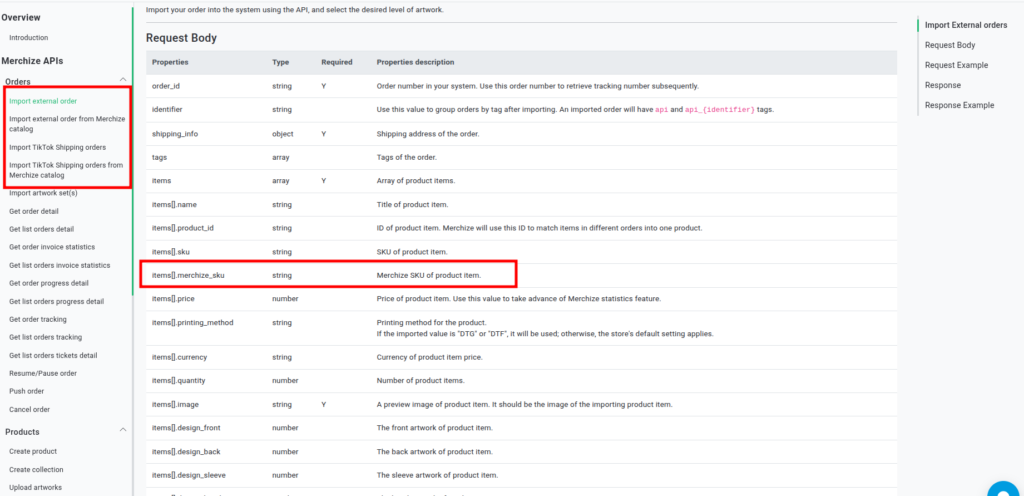
Read our document for pushing orders via API here.
- Mapping required — if items[].merchize_sku information is missing
Where to get Merchize SKU information?
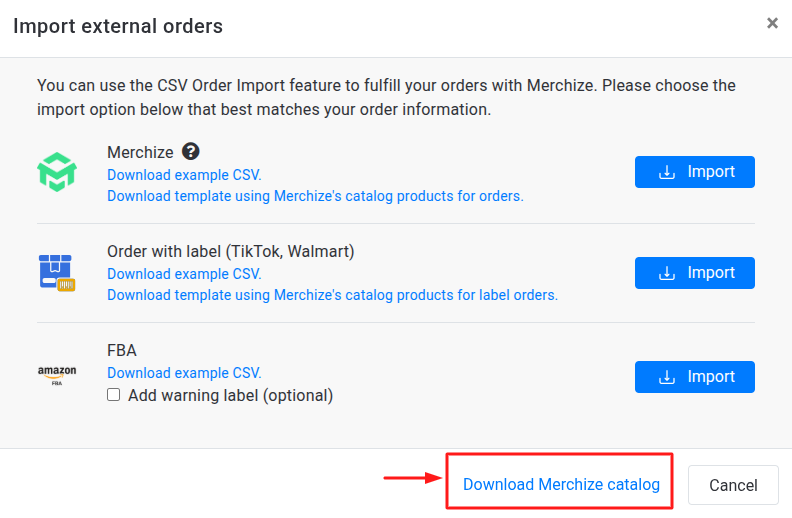
1) Go to Merchize Seller Dashboard > Orders > CSV Import. In the Import external orders pop-up, click “Download Merchize Catalog". Check the SKU variant column.
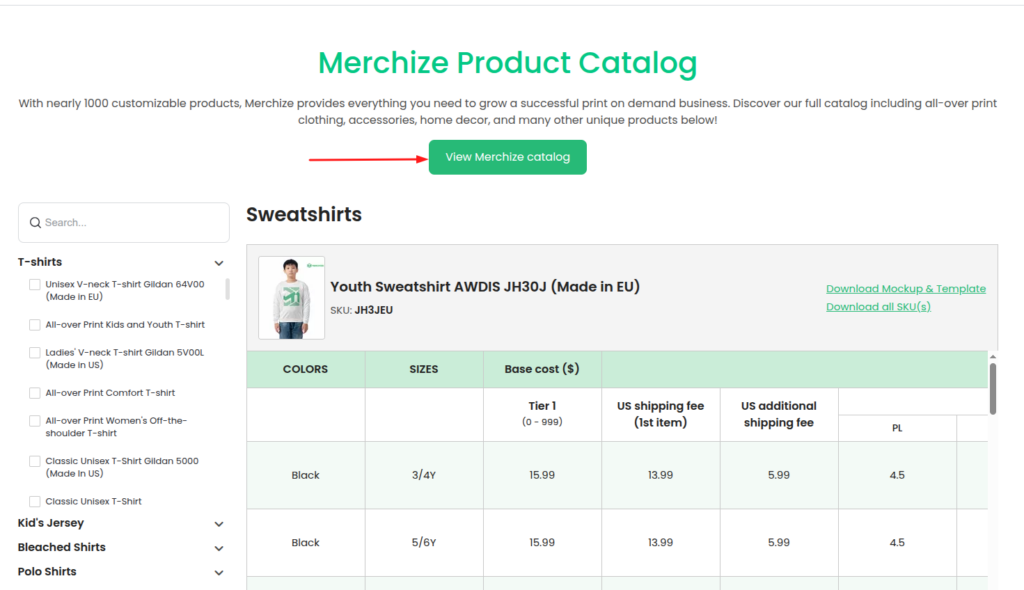
2) From Merchize Product Catalog page, click “View Merchize catalog" to open Merchize’s catalog sheet. Check the SKU variant column.
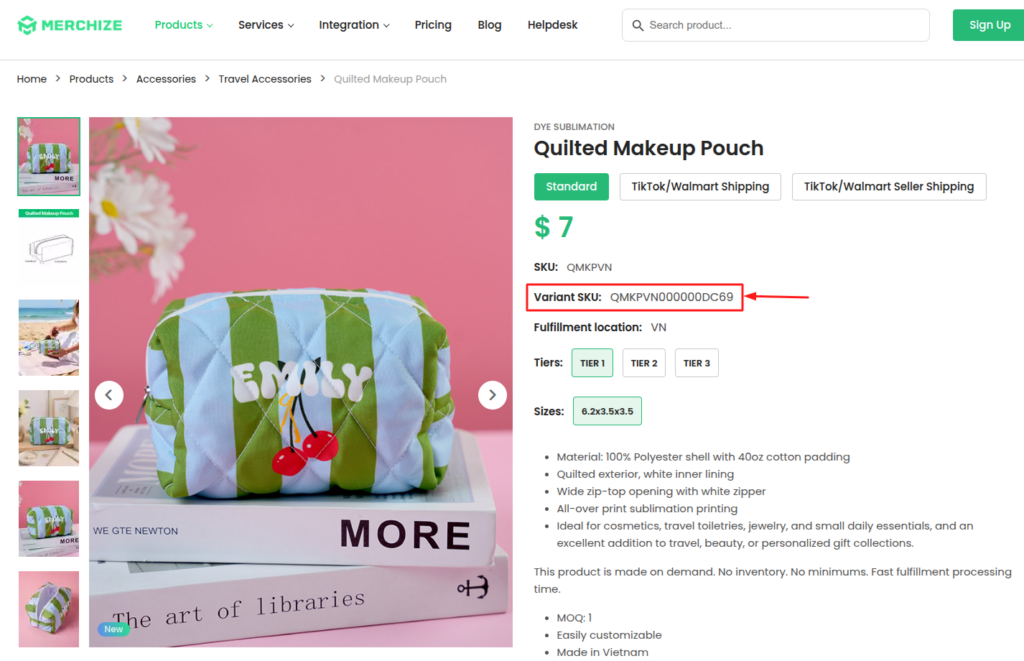
3) On each product detail page, check the Variant SKU field.
4) Use API Get merchize product catalog
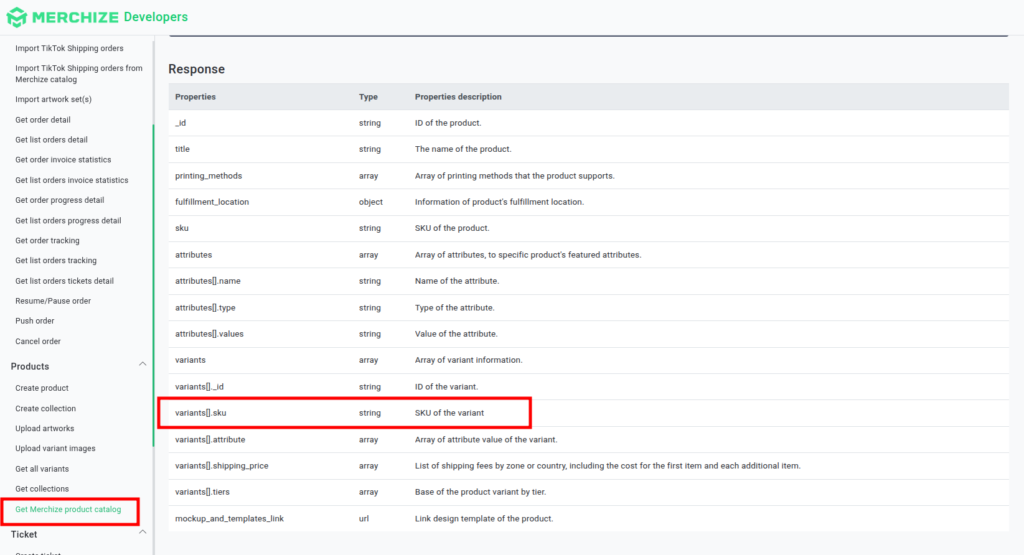
Note: Mapping does not apply to orders that have already moved to the production stage.
How To Check Whether an Order Needs Mapping
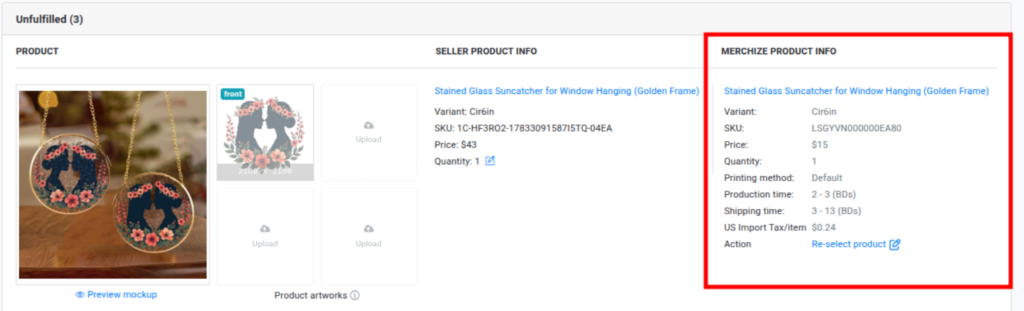
Open the order detail page to check whether the items in the order have already been mapped.
- If mapping is already done, the order will fully display both Seller Product Info and Merchize Product Info.
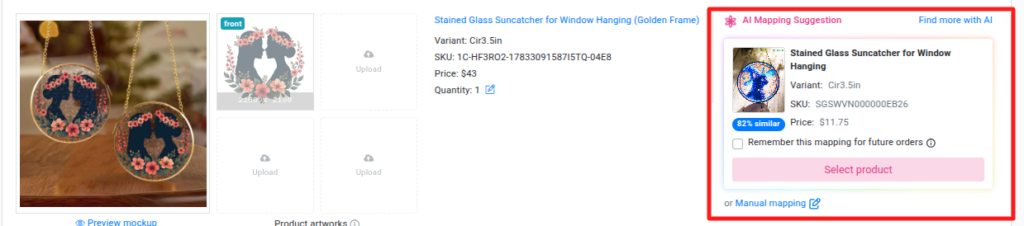
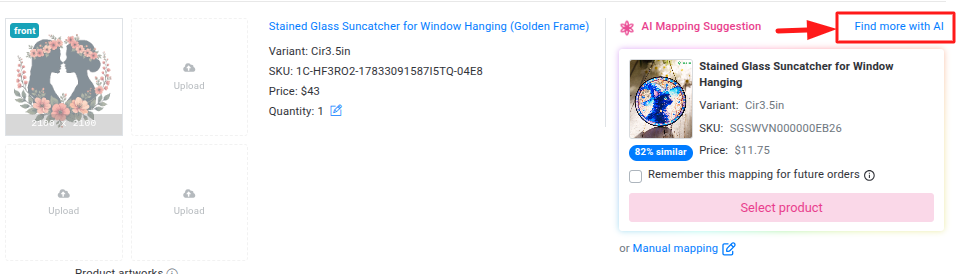
- If not yet mapped, the system will display an AI Mapping Suggestion section instead of the Merchize Product Info. Continue to Step 2 to choose a mapping method.
How To Map Products in the Order
You can map products using either of these two methods:
- Use AI suggestions (fast and convenient)
- Search and map manually (more flexible)
- Set up Product Mapping Rules to Automap.
Method 1: Use AI Suggestions (Recommended)
If a product hasn’t been mapped yet, the AI Mapping Suggestion feature will automatically analyze the information and suggest one or more matching products from the Merchize Catalog.
Step 1. Review the AI Suggestion
In the AI Mapping Suggestion section, the system displays the recommended product, including:
- Product image
- Product name
- Variant
- SKU
- Price
- Match Confidence (how closely the product matches your order)
Step 2. Choose the Right Product
If the AI recommendation is correct, click Select Product.
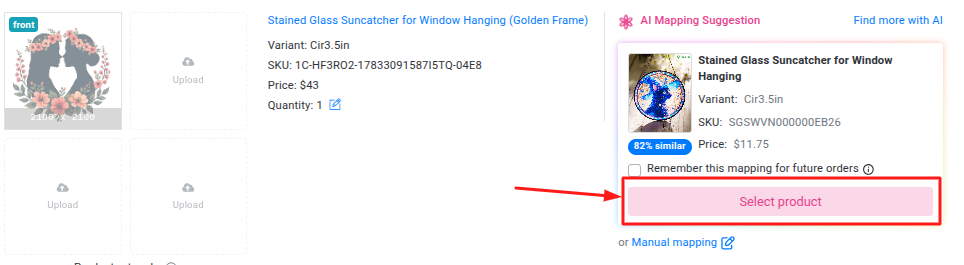
If it’s not the right match, click Find More with AI to view additional suggestions.
You can also enter a more detailed product description and click Enhance. This gives the AI more context and helps it find more accurate matches.
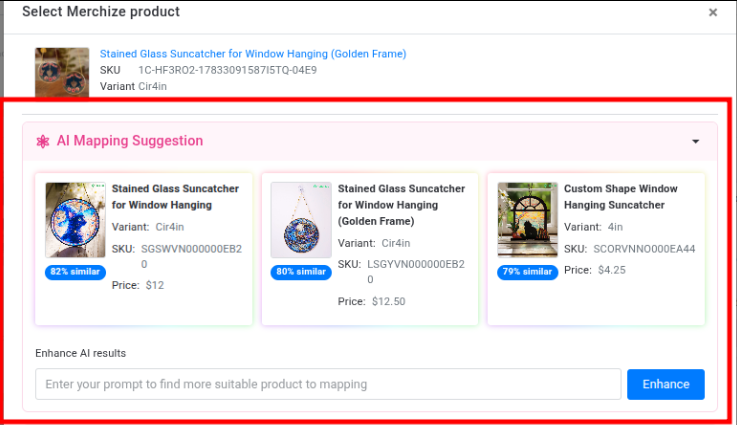
Step 3. Confirm the Product
Select the correct product from the list of AI suggestions.
Step 4. Save the Mapping for Future Orders (Optional)
To automatically apply this mapping to similar orders in the future, check Remember this mapping for future orders
Method 2: Manual Mapping
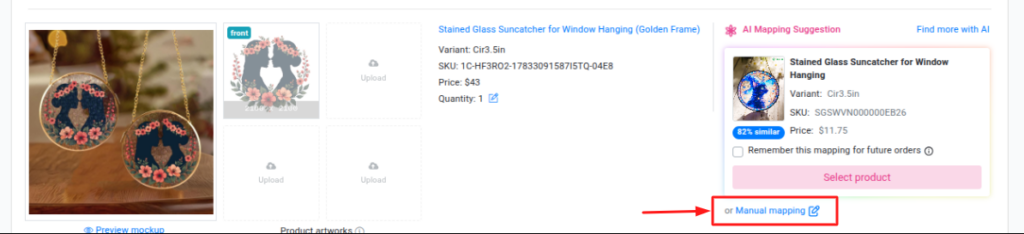
Step 1. Open Manual Mapping
On the Order Detail page, click Manual Mapping.
Step 2. Search for the Product
You can search for a product using one or more of the following:
- Category
- Product Title
- SKU
You can combine multiple filters to narrow down the search results more quickly.
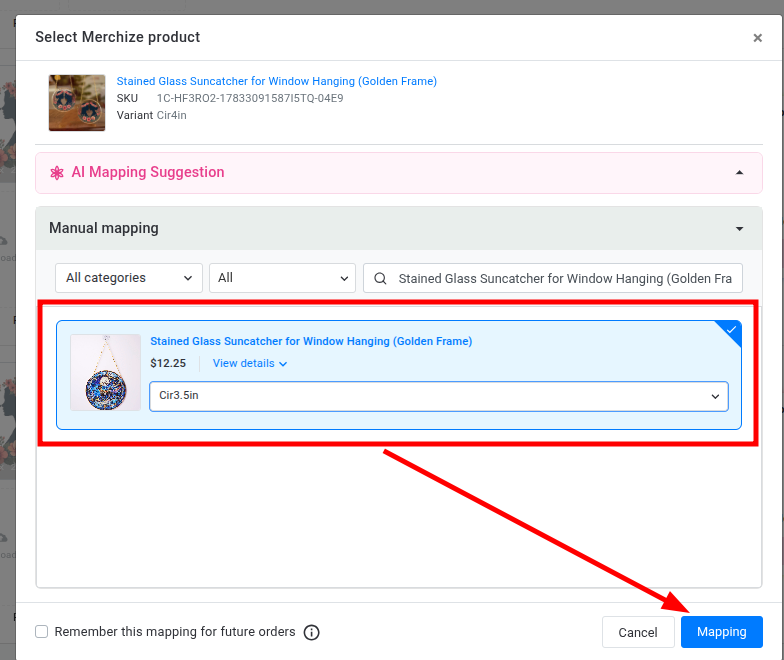
Step 3. Select the Product
Choose the correct product from the search results.
Step 4. Select the Correct Variant
Select the exact product variant, such as the correct Size, Color, or Style.
Step 5. Save the Mapping for Future Orders (Optional)
If you want the system to automatically use this mapping for similar orders in the future, turn on:
Remember this mapping for future orders
Step 6. Complete the Mapping
Click Mapping to confirm.
Method 3: Set up Product Mapping Rules for automapping
Instead of mapping every order manually, you create a rule set once. From then on, any new order that matches the rule’s conditions will be mapped automatically and move forward in processing.
You should use this feature if:
- You name your products following a consistent, identifiable structure that corresponds to product lines in the Merchize catalog.
- You want the system to automatically map new incoming orders.
- You want to reduce the amount of manual mapping you do per order.
For more details, read here.